

✦✦✦✦✦✦✦✦✦✦✦✦
Welcome.
Your tracker awaits…
Your tracker awaits…


 coin to open
Welcome to your Tailored Luxuries Cash Flow Tracker. It's an honor to accompany you on your financial journey.
Money moves all month long, and your tracker was designed to help you keep up with every move. Simply seal each entry and let your tracker do the math.
Let's get you started.

Open it from its own icon, like an app.
 Cash Flow Tracker
One tap, and your tracker is always right there.
Please don’t skip this step. Safari can erase entries left in a browser tab after 7 days without a visit.
 emblem to open it
Your tracker is set up and ready.
Want to change your greeting, color, balance or reminder? Everything you chose during setup lives in Color & Settings. To see the welcome envelope and letter again, open Color & Settings, tap the Greeting tab, then tap Replay the welcome.
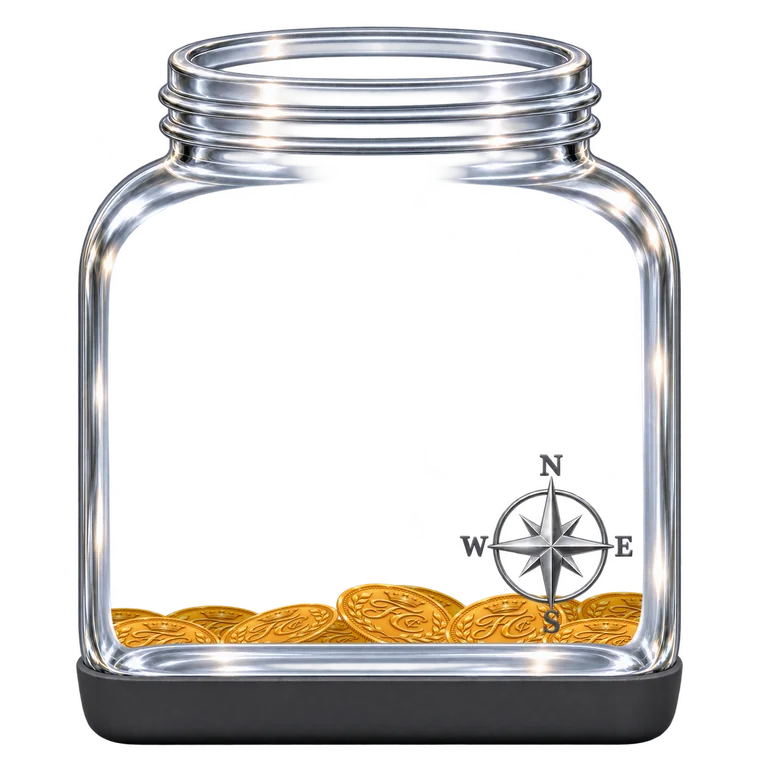
Your Current Balance is always at the top. Below it you will see your Beginning balance, your Income this month and your Expenses this month. To change your beginning balance, tap the pencil ✎ beside it, type the new amount and tap anywhere outside the box. Your jar fills as money comes in and empties as money goes out. Top Expenses shows the eight categories you spent the most on this month. Use the arrows beside the month to look at past months. A past month shows its Ending Balance.
Fill in your card: a Title (such as Paycheck or Haircut), the Amount, a Category and the Date. Money coming in goes under Income & Deposits. Then tap Seal It. Your card is stamped, sealed in an envelope and sent off. Your tracker records money on the day it happens, so it will not accept a future date. Seal each entry on the day it comes out of your account.
Under What was it for?, tap one: Essentials, Savings & Investments, Debt Freedom or Tailored Luxuries ✦. Tap the i beside What was it for? to read what each one means. Tap your choice again to clear it. Choosing the Savings & Investments category picks Savings & Investments for you. Money coming in does not need a choice, so the row hides when you pick Income & Deposits.
Skip it, and the entry shows as Not Sorted in My Money Portrait. To sort it later, open Transaction History, tap ✎ beside the entry, tap your choice and tap Seal It.
Every entry for the month, newest first, with your balance after each one, is listed here. Use the arrows beside the month to see other months. The search box searches every month, so you can type something like car tags to see when it was paid. Tap ✎ to change an entry or ✕ to delete it. You will be asked to confirm before anything is deleted.
My Money Portrait has five pages. Tap a button at the top (At a Glance, My Money Mix, Top Expenses, Tailored Luxuries or Month to Month) to open it. The page you are on is filled in with your color.
Tap the At a Glance bookmark to see the month in one picture: what you began with, money in, money out, money remaining, and a ring showing each category's share of your spending.
My Money Mix shows where your spending went: Essentials, Savings & Investments, Debt Freedom, Tailored Luxuries and Not Sorted, each with its amount and its percent of your money out. If entries are Not Sorted, tap Go to Transaction History to sort them.
Top Expenses lists your eight biggest expenses of the month. Tailored Luxuries lists every entry marked ✦, with the total and its percent of your expenses.
Tap the Month to Month bookmark to compare. Spin the wheel and tap up to three choices (such as Dining & Entertainment or Money out), then tap up to three months to see them side by side.
Tap Print › at the bottom of any My Money Portrait page, or under the totals in Transaction History.
Choose My Money Portrait for a one-page summary of the month you are viewing, or choose Transaction History and set the From and To dates. Then choose Full color or Ink saver (black and gray, no artwork) and tap Print.
Your device's print window opens. To keep a copy instead of printing, save it as a PDF: on a computer, choose Save as PDF in the print window. On an iPhone, tap the Share button at the top of the print window, then tap Save to Files.
Tap Add a Goal and choose a Savings Goal or a Spending Limit. You can have up to five goals.
Savings Goal: name it, then enter how much you would like to set aside each month. Saving for something bigger? Tap Yes under Saving toward a bigger total?, enter your total and choose the month you want it by. Your tracker tells you how much to set aside each month, and you can tap Use to accept it. To count money toward a savings goal, seal it in Add Transaction under the Savings & Investments category. If you have more than one savings goal, your card will ask Toward which goal?
Spending Limit: name it, choose its category and enter your monthly limit. Every entry in that category counts toward it. Your ribbon shows what is left to enjoy.
Your tracker cheers you on along the way. When an entry brings a goal to 80%, 90% or exactly 100%, a gold arrow lands on your target, closer to the bull’s-eye as you get closer. A spending limit gets a calm, gentle note. A savings goal gets a celebration that grows as you near it, and another with every new entry beyond 100%. Reaching a savings goal earns a Target Stamp. At the start of each new month, every spending limit you kept between 80% and 100% earns one too, and a limit you used less than 80% of gets a note to help you set a truer limit. Every three Target Stamps earn a Bull’s-Eye Pendant. Edits never celebrate. Progress starts fresh each month. Tap ✎ on a goal to change it or ✕ to remove it.
Your tracker was designed to celebrate you along your financial journey. As you reach milestones, seals and badges arrive in your honor, and each one is kept in My Valet Case. Once earned, a piece is yours to keep.
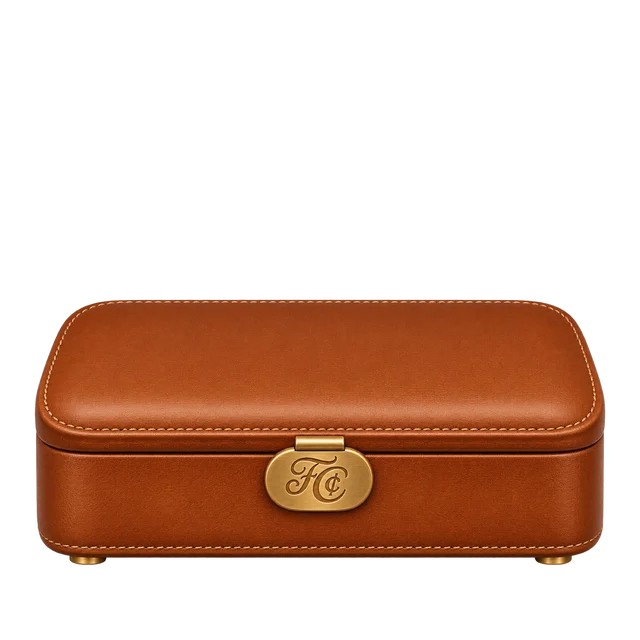
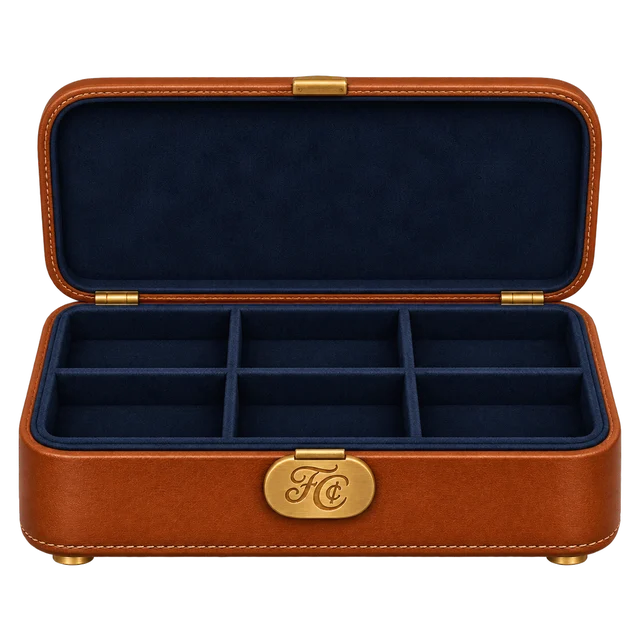
To look inside, tap My Valet Case across the top, or the My Valet Case button under Add Transaction on your Dashboard. Then tap the box, or its FC clasp, to open it. Tap the clasp again to close it.
Tap any compartment to see what is inside. Tap any piece to see when you earned it, and tap Replay the celebration to enjoy that moment again.
Target Stamps and Bull’s-Eye Pendants from your goals are kept in the Monthly Stamps compartment.
Add your tracker to your Home Screen, Dock or taskbar so it opens from its own icon, like an app. Do this before you set up your tracker, then always open it from that icon.
iPhone or iPad (Safari): tap the three dots ••• beside the address bar, then tap Share. Scroll down and tap Add to Home Screen. Leave Open as Web App on, then tap Add.
Android (Chrome): tap the three dots ⋮ at the top right, then Add to Home screen (some phones say Install app). Tap Install or Add.
Mac (Safari): in the menu bar at the top of your screen, click File, then Add to Dock, then Add.
Mac or Windows (Chrome): click the three dots ⋮ at the top right, choose Cast, save, and share, then Install Tailored Luxuries Cash Flow Tracker, then Install. Edge: click the three dots ···, choose Apps, then Install this site as an app. On Windows, right-click its icon in the taskbar and choose Pin to taskbar.
Tap the tabs across the top of the card. Color: use the arrows or swipe, and tap any color to see your whole tracker change behind the card. Greeting: choose how your tracker greets you, or tap Replay the welcome to see the envelope and letter again. Balance: change this month's beginning balance. Reminder: see below. Backup: see below. Tap Done when you are finished.
In Color & Settings, tap the Reminder tab, then Set a reminder. Choose how often (every day, every few days or once a week), choose a time, then tap Add to My Calendar. Your phone or computer opens your calendar. Tap Add to save it. It reminds you even when your tracker is closed. To change it later, first delete the old reminder in your calendar app (your tracker cannot remove it for you), then tap Change my reminder and add your new one.
Your entries are saved on this device, in this browser. Every so often, tap Save a backup. A small backup file is saved to your Downloads. Keep it, so your entries are never lost. You will find these buttons here and in Color & Settings under the Backup tab.